
Before you give an AI agent write access to Linear

Say you connect an AI assistant to Linear on a Friday and ask it to clean up the backlog. Close what's stale, merge the duplicates, sort out the labels. On Monday you find it has touched a few hundred issues. Most of the changes look fine. Some don't, and nobody is quite sure which.
You can avoid most of that mess with a bit of setup before the first run, while it's still easy.
We build BackupLatte, a backup service for Linear, so we think about the cleanup part a lot. Here's what we'd do before letting an agent loose on a real workspace.
How agents get access to Linear
There are a few ways in. Linear now has its own agent platform, still in Developer Preview: an admin installs the agent, it gets its own user in the workspace, and the admin picks which teams it can see. Other tools use an OAuth app or an API key, with scopes such as read and write. And AI assistants can connect through Linear's MCP server, which is read-write unless you ask for less.
Whichever way it comes in, an agent can do most of what a member can in the teams it reaches. Linear's agent guide says agents can't sign in to the app, use admin settings or manage users. They can still edit, close and create a lot of issues.
Start with less access than you think you need
Let it read first. Linear's MCP server has a separate read-only address, https://mcp.linear.app/mcp/readonly, and you can create an API key with only the Read permission. A week of an agent summarising and suggesting tells you a lot about how it would behave with write access.
When it does need to write, keep the scope narrow. If all it does is comment, it doesn't need write. Linear's own docs put it plainly: "If your application only needs to create comments, use a more targeted scope."
Keep it to one team at first, too. Admins choose an agent's teams when they install it and can change them later, and API keys can be limited to specific teams. If something goes wrong, you'd rather clean up one team than the whole workspace.
Make sure you can tell what it did
Let the agent work as its own user, not through your account. Then its changes carry its name, and its user page in Linear shows its issue activity. If you hand issues to it, you can filter a view by Delegate to see them all in one place.
Don't count on the audit log for this. In Linear it's an Enterprise feature, only workspace owners can open it, and it tracks access, subscriptions and settings changes, not edits to issues.
For anything that touches more than a handful of issues, ask the agent to list what it's about to change and wait for your go-ahead. Linear's MCP docs use the same idea in an example prompt: "Before applying any changes, show which issues you plan to update." It only works if the agent listens, so keep the other limits in place as well.
Test the agent in a sandbox workspace
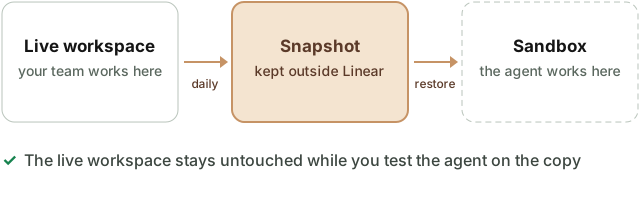
Test the agent in a separate Linear workspace before giving it write access to your team's backlog.
Create an empty workspace and restore a recent BackupLatte snapshot into it. Connect the agent there and give it the task you plan to run on the live workspace. Then review what it changed: which issues it closed, what it rewrote, and whether it stayed within the scope you gave it. Adjust its instructions and permissions if needed, and test again before using it on live work.
The restore guide explains how to set up the copy and what carries over. Restoring into a separate workspace leaves the source workspace untouched.
When it goes wrong anyway
Stop the agent before you start fixing things. Remove it, revoke its key or disconnect the MCP client. Make sure someone knows how: admins can see and revoke workspace API keys under Settings → Administration → API (Linear's docs).
Then look at what it actually did, on its user page and in the history of the issues it touched. What you do next depends on the damage.
If it changed statuses, labels or assignees in bulk, it's usually quickest to fix in Linear itself: select the issues and change them back in one go. A snapshot or an export from before the run tells you what the old values were.
Deleted issues and projects stay in Linear's recently deleted items for 30 days. A restore into the same workspace also takes them out of the trash while they're there, and recreates them from the snapshot once they're gone.
Overwritten descriptions and documents are harder. A restore doesn't overwrite anything that still exists, so you go back to the earlier version yourself. Open it in a snapshot download, or in a copy restored into another workspace, and paste back what you need.
Issues and comments the agent shouldn't have created have to be deleted by hand. A backup can't tell which new records you want to keep.
All of this assumes you still have a snapshot from before the agent started. If your retention is seven days and you notice the problem in week three, that copy is gone.
A note about us
BackupLatte also asks for write access. When you first connect a Linear workspace, we request read and write together. Backups read your data; restores use write access to recreate records. The write permission is already granted at connection time, even if you only use backups. Extended coverage adds admin access through a separate reconnect. The connection guide and security page explain the details.
If you haven't set up backups yet, our Linear backup and restore guide is a good place to start. Ideally before the agent's first run.
Linear documentation checked on 21 October 2026.