
How to back up and restore your Linear workspace

If a project is deleted or an integration overwrites a few hundred issue descriptions, you may not notice straight away. By the time you do, you need a copy from before the mistake.
We build BackupLatte, a backup service for Linear. Here's what Linear can recover on its own, where exports fall short, and how our backups and restores work.
What Linear keeps on its own
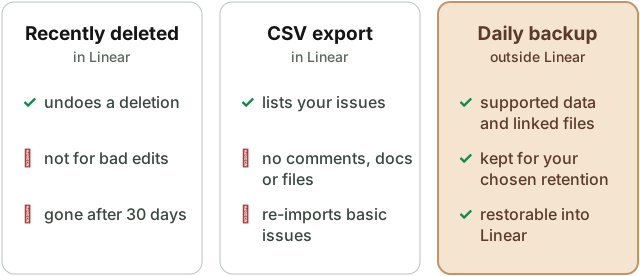
Archived items stay in Linear, and you can unarchive them. Deleted items are a different matter. Deleted issues, projects, initiatives and documents go to the team's archives under Recently deleted. Linear's documentation says they stay there for 30 days and are then permanently removed. After that, Linear's recently deleted list can no longer bring them back.
Linear also has CSV exports. Workspace admins (owners, on Enterprise plans) can export issue data from Settings → Administration → Import/Export, and members can export issues from a view or project. You get one row per issue with fields such as title, description, status, assignee, labels and cycle. There are separate exports for projects and initiatives too. Attachment files are not included; Linear's export docs list what each export contains.
Where it falls short
Recently deleted only covers deletions. If a bulk edit overwrote statuses or descriptions, there is nothing in the trash to recover. If nobody notices a deletion for five weeks, the recovery window has already closed.
The issue CSV includes project IDs, parent issues and cycle fields, but not comments, document contents, project updates or uploaded files. It doesn't capture the full workspace structure. Linear's CLI importer can read it back as issues with basic fields, without comments or projects.
And an export only exists if someone remembers to run it.
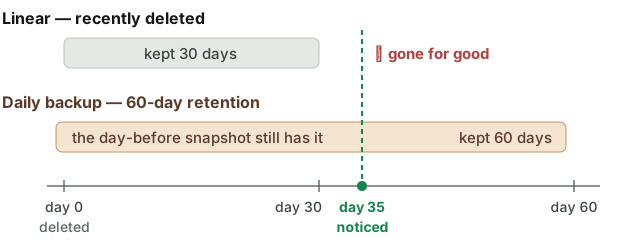
A useful backup runs on a schedule and keeps older copies, because problems can surface late. It should include the comments, documents and files your team needs, live outside Linear, and let you know when something couldn't be saved. You also need a way to restore it into Linear with the links between records intact.
How BackupLatte backs up Linear
You connect a workspace through Linear's own authorisation screen. We never see your Linear password. BackupLatte requests read and write access when you connect: backups use read access, and write access is used only for restores you start.
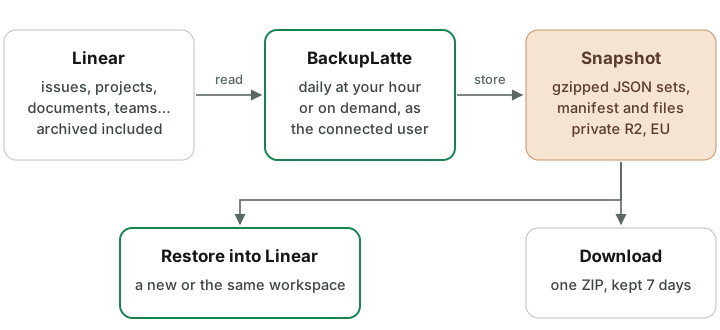
The first backup runs within an hour of connecting. After that, one runs every day at an hour you pick. You can also start a manual backup (see scheduling). Each run captures supported data the connected user can access, including issues, comments, projects, documents, cycles and archived records. Private teams that user can't access are left out. The full coverage list is in What a backup contains.
Files uploaded to Linear and linked from that content are copied too, so the backup holds the files themselves rather than just links to the originals.
If something couldn't be backed up, the snapshot lists the gap and BackupLatte emails you. You get another email when backups are healthy again. You choose how long snapshots are kept, up to 365 days per workspace (see retention).
Snapshots are stored in a private bucket in the EU, and the app runs on servers in Germany. More on that in Security. You can download a snapshot as a ZIP containing its data and copied files, and you don't need BackupLatte to read it.
A backup is collected while people keep working, so it isn't a copy of the workspace at one exact moment. We re-read changed records where Linear's API allows it; the limitations page explains the remaining trade-offs.
Restoring a Linear workspace
BackupLatte can restore issues, comments, projects, documents and their supporting records into a workspace you have connected.
We recommend restoring into a new, empty workspace. You can compare the recovered copy with current work and bring over what you need. This is also how you recover earlier versions of records after a bad edit.
You can restore into the workspace the snapshot came from too. Only missing records are created; existing ones are left alone, and issues and projects sitting in Linear's trash are taken out of it. This does not roll back edited descriptions, statuses or other fields.
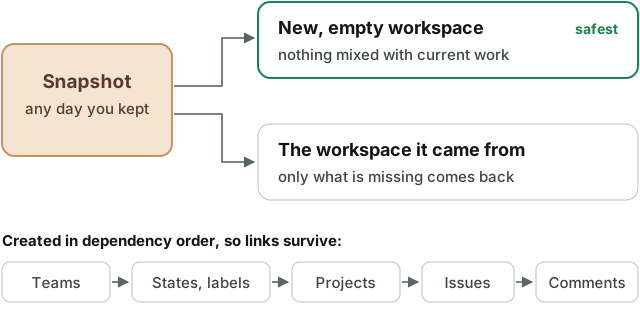
Records are restored in order so issues, comments and project links point to the right places. When restoring into another workspace, files are uploaded again and their links are updated. Archived records come back archived.
Some things will look different afterwards. Issue identifiers may change, and restored comments are created by the connected Linear user, with other authors credited in the text. History, users, the audit log and integrations stay in the download but aren't restored into Linear. The details are under what is not restored.
If a restore stops halfway, you can resume it. Records already restored are recognised, so they aren't created twice. The step-by-step guide is in Restore a backup into Linear.
Worth doing now
- Connect with an account that can see every team you want backed up. See which account to connect with.
- Turn on extended coverage if you also want workspace settings, the audit log and integrations included in the backup.
- Keep snapshots longer than it might take someone to notice a problem. If a mistake can go unnoticed for two weeks, seven days of snapshots won't be enough.
- Do one test restore into a new, empty workspace, so you know what recovery looks like for your team before you need it.